On this page
Microsoft is shipping two Entra ID changes in March 2026 that will change how your users authenticate. Neither change requires administrator action to take effect, and that is precisely the risk. If you do not act before the deadlines, Microsoft applies its defaults, and the results may not align with your security posture.
Change 1: Passkey profiles auto-enable in March, with synced passkeys turned on by default for any tenant that does not have attestation enforced. Your existing FIDO2 configuration will be migrated to a new schema regardless of your readiness.
Change 2: Conditional Access policies targeting “All resources” with exclusions will begin enforcing on OIDC-only sign-ins starting March 27. Users who previously bypassed MFA will start receiving prompts.
Both changes are security improvements. Both can cause disruption for unprepared organizations. This post explains how to audit your tenant and take control before the deadlines.
Part 1: Passkey Profile Auto-Enablement
What Is Changing
Microsoft is replacing the flat, tenant-wide FIDO2 authentication method configuration with a profile-based architecture. Today, a single set of FIDO2 settings applies to the entire tenant. After migration, administrators can configure up to three passkey profiles, each scoped to different security groups.
The profile model is a welcome improvement. The concern is what happens during automatic migration for tenants that have not opted in.
Auto-Migration Behavior
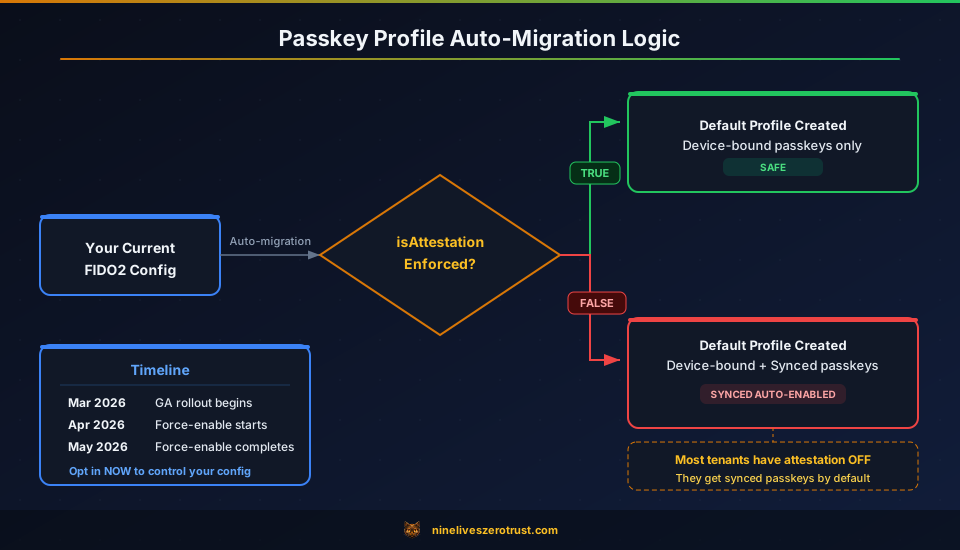
When your tenant migrates (automatically, if you do not opt in first), Microsoft creates a Default passkey profile and populates it based on your current attestation setting:
| Your Current Setting | What Gets Auto-Populated | Why This Matters |
|---|---|---|
| Attestation enforced: On | Device-bound passkeys only | No change. Only hardware keys are permitted. |
| Attestation enforced: Off | Device-bound + synced passkeys | Synced passkeys are now enabled. |
Most organizations have attestation off. Many disabled it because attestation verification was unreliable, not because they intended for cloud-synced credentials to flow through iCloud Keychain or Google Password Manager. After migration, those tenants will have synced passkeys enabled by default.
The Timeline
| Phase | Commercial | GCC / GCC High / DoD |
|---|---|---|
| GA rollout begins | Early March 2026 | Early April 2026 |
| GA rollout completes | Late March 2026 | Late April 2026 |
| Force-enable (non-opted tenants) | Early April 2026 | Early June 2026 |
| Force-enable completes | Late May 2026 | Late June 2026 |
If you opt in during March, you control the configuration. If you wait, Microsoft applies its defaults starting in April.
Synced Passkeys vs Device-Bound: Why It Matters
| Device-Bound | Synced | |
|---|---|---|
| Private key | Never leaves the physical device | Encrypted and synced via cloud provider (Apple, Google, Microsoft) |
| Examples | YubiKey, Titan Key, Windows Hello, Microsoft Authenticator | iCloud Keychain, Google Password Manager |
| Attestation | Supported | Not supported |
| Recovery | Requires backup key or admin reset | Available on any authenticated device |
| Risk | Lost key = locked out | Cloud provider compromise = key compromise |
For privileged accounts, device-bound is the appropriate choice. For the general workforce, synced passkeys trade a degree of security for significantly better usability. Microsoft reports a 99% registration success rate and 14x faster sign-in compared to password + MFA.
The question is not whether synced passkeys are beneficial. It is whether you want them enabled without an explicit decision to do so.
How to Audit Your Current Configuration
Before migration, review your current settings.
In the Entra portal: Navigate to Protection > Authentication methods > Policies > Passkey (FIDO2).
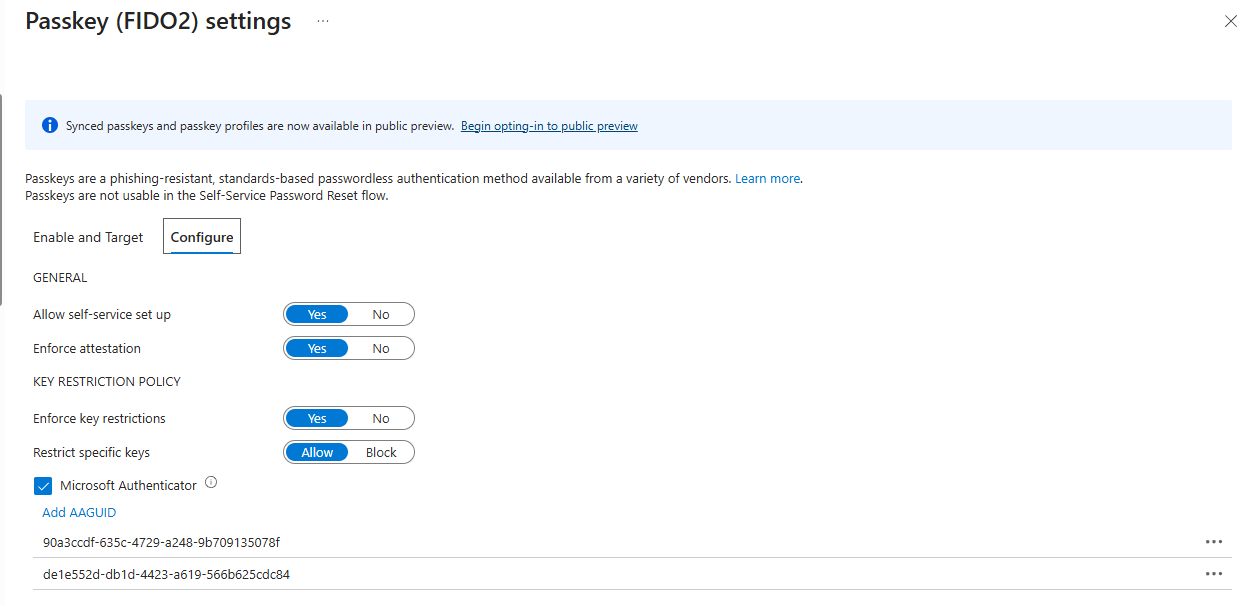
Via Graph API (returns the complete configuration, including properties not visible in the portal):
GET https://graph.microsoft.com/beta/policies/authenticationMethodsPolicy/authenticationMethodConfigurations/fido2
Via PowerShell:
Connect-MgGraph -Scopes "Policy.Read.AuthenticationMethod"

Get-MgBetaPolicyAuthenticationMethodPolicyAuthenticationMethodConfiguration `
    -AuthenticationMethodConfigurationId 'Fido2'
Key properties to review:
isAttestationEnforced: Iffalse, your tenant will receive synced passkeys after migrationkeyRestrictions.aaGuids: Your current AAGUID allowlist. These values migrate into the Default profile. If you enabled Microsoft Authenticator in the portal, Entra automatically added two AAGUIDs:90a3ccdf-635c-4729-a248-9b709135078f(iOS) andde1e552d-db1d-4423-a619-566b625cdc84(Android)includeTargets: The groups that currently have FIDO2 enabled
How to Take Control Before April
Step 1: Opt in to the preview. In the Entra portal, go to Passkey (FIDO2) and click the “Begin opting-in to public preview” banner shown in the screenshot above. This allows you to configure profiles on your terms before Microsoft applies its defaults in April.
Step 2: Configure your profiles. You can create up to 3 profiles. The following is a recommended configuration:
| Profile | Target Group | Passkey Type | Attestation | Use Case |
|---|---|---|---|---|
| Privileged | Admins, Executives | Device-bound only | Enforced | Hardware keys required |
| Standard | All Users | Device-bound + Synced | Disabled | Workforce convenience |
| Restricted | Contractors, External | Device-bound only | Disabled | No cloud sync for third parties |
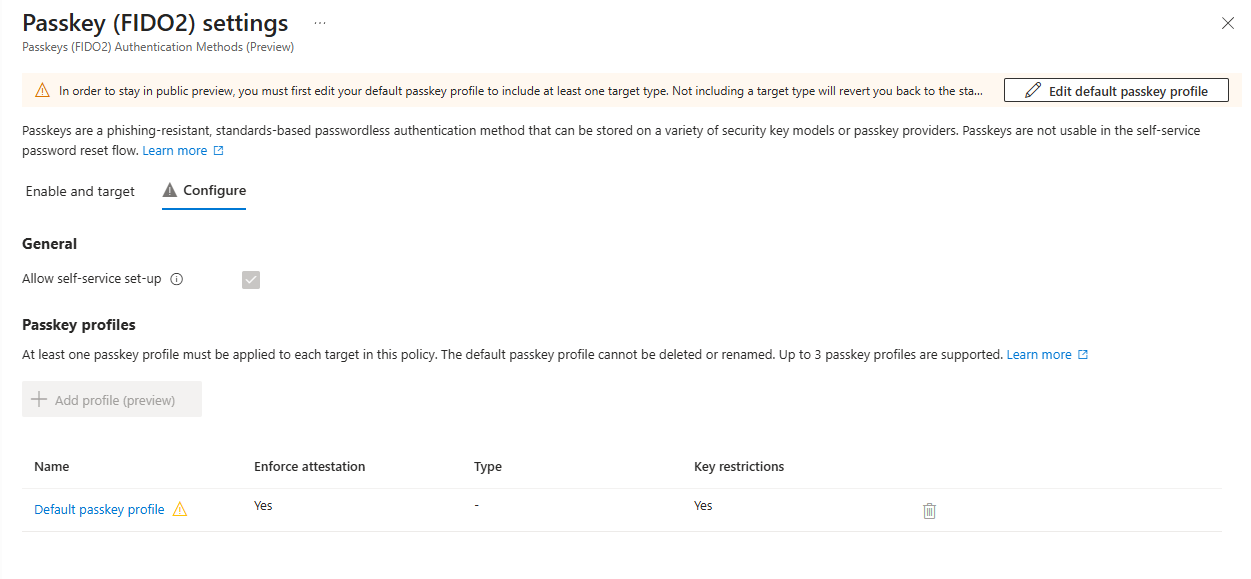
Step 3: Assign profiles to groups. Under the Enable and Target tab, add your security groups and assign the appropriate profile(s) to each.
Gotchas to Watch For
Removing an AAGUID from an allow list is retroactive. It blocks existing sign-ins, not just new registrations. If you modify your AAGUID list during migration, users with those key types will lose access immediately.
Registration campaigns change silently. When synced passkeys are enabled and Microsoft-managed registration campaigns are active, the campaign target shifts from Microsoft Authenticator to passkeys. The audience also expands to all MFA-capable users with unlimited daily reminders. Check your current campaign settings before migration:
Connect-MgGraph -Scopes "Policy.Read.All"

$policy = Get-MgPolicyAuthenticationMethodPolicy
$campaign = $policy.RegistrationEnforcement.AuthenticationMethodsRegistrationCampaign

$campaign | Select-Object State, SnoozeDurationInDays
$campaign.IncludeTargets | Select-Object Id, TargetedAuthenticationMethod
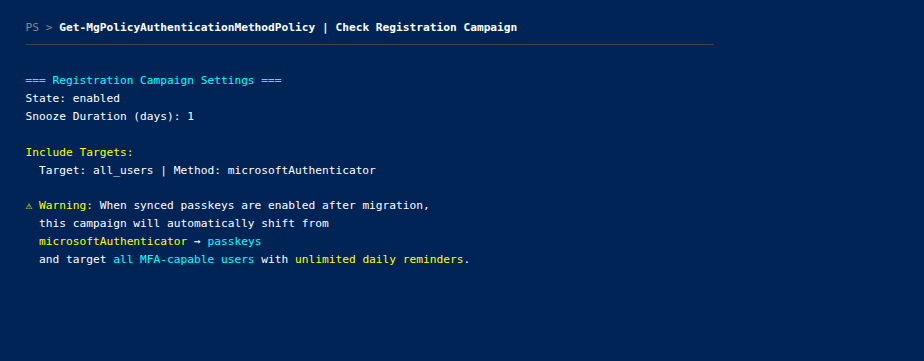
If TargetedAuthenticationMethod is microsoftAuthenticator and State is enabled, the campaign will silently shift to passkeys after migration.
Opting out of preview is destructive. It removes all profile configurations and reverts to a single Default profile. If passkeys are your only MFA method, this can cause lockouts.
Policy size limit: 20 KB. Tenants with extensive AAGUID lists across multiple profiles may reach this ceiling.
Part 2: Conditional Access Enforcement Fix
The Gap That Existed
If you have a Conditional Access policy targeting “All resources” with one or more resource exclusions, certain sign-in flows were not being evaluated by that policy.
Specifically, when an application requested only basic OIDC scopes (openid, profile, email) or minimal directory scopes (User.Read), the sign-in was not mapped to any resource for CA evaluation purposes. The “All resources” policy with exclusions simply did not fire.
This means users authenticating through applications that only request basic scopes have been bypassing MFA requirements, device compliance checks, and location restrictions, silently, for an unknown period of time.
What Is Changing on March 27
Starting March 27, 2026, Microsoft maps these OIDC-only sign-ins to Azure AD Graph as the target resource. Policies that target “All resources” (with exclusions) will now evaluate and enforce on these flows.
The affected scopes:
| Scope | Client Type | Was Bypassed | Now Enforced |
|---|---|---|---|
openid | All | Yes | Yes |
profile | All | Yes | Yes |
email | All | Yes | Yes |
User.Read | All | Yes | Yes |
offline_access | All | Yes | Yes |
People.Read | All | Yes | Yes |
User.Read.All | Confidential | Yes | Yes |
User.ReadBasic.All | Confidential | Yes | Yes |
People.Read.All | Confidential | Yes | Yes |
GroupMember.Read.All | Confidential | Yes | Yes |
Member.Read.Hidden | Confidential | Yes | Yes |
Rollout is phased: March 27 through June 2026. No opt-out is available. Microsoft is treating this as a security fix. See the official announcement on the Microsoft Entra blog and Help Net Security’s coverage for full details.
How to Find Your Affected Policies
A policy is affected if all three conditions are true:
- Targets “All resources” (formerly “All cloud apps”)
- Has at least one resource exclusion
- Has grant controls (MFA, device compliance, etc.)
PowerShell to find affected policies:
Connect-MgGraph -Scopes "Policy.Read.All"

$policies = Get-MgIdentityConditionalAccessPolicy -All

$affected = $policies | Where-Object {
    $_.Conditions.Applications.IncludeApplications -contains "All" -and
    $_.Conditions.Applications.ExcludeApplications.Count -gt 0 -and
    ($_.GrantControls.BuiltInControls.Count -gt 0 -or $_.GrantControls.AuthenticationStrength)
}

$affected | ForEach-Object {
    [PSCustomObject]@{
        Name           = $_.DisplayName
        State          = $_.State
        ExcludedApps   = ($_.Conditions.Applications.ExcludeApplications -join ", ")
        GrantControls  = ($_.GrantControls.BuiltInControls -join ", ")
    }
} | Format-Table -AutoSize
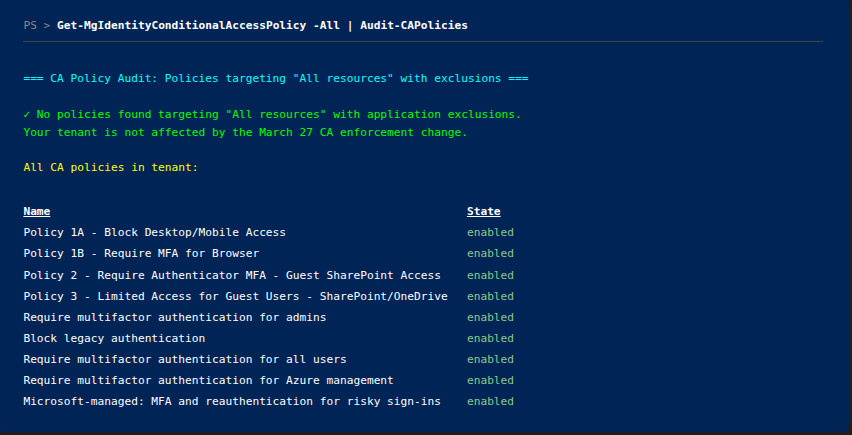
What Users Will Experience
After March 27, users authenticating through applications that only request basic scopes may encounter:
- MFA prompts where they previously had seamless access
- Device compliance blocks if the policy requires compliant or hybrid-joined devices
- Location-based blocks if the policy restricts by named location
The most common impact will be on custom line-of-business applications, legacy applications with minimal scope requests, and any application using openid profile email without requesting resource-specific permissions.
How to Test Before It Takes Effect
Conditional Access What-If tool: Test specific user and application combinations in the Entra portal under Protection > Conditional Access > What If. This predicts which policies will fire.
Review sign-in logs: After March 27, monitor for CA-related failures. The following PowerShell snippet retrieves recent failures where Conditional Access blocked a sign-in:
Connect-MgGraph -Scopes "AuditLog.Read.All"

$cutoff = (Get-Date).AddDays(-7).ToString("yyyy-MM-ddTHH:mm:ssZ")
$signIns = Get-MgAuditLogSignIn -Filter "createdDateTime ge $cutoff and status/errorCode ne 0" -Top 50

$signIns | Where-Object { $_.ConditionalAccessStatus -eq "failure" } | ForEach-Object {
    [PSCustomObject]@{
        User      = $_.UserPrincipalName
        App       = $_.AppDisplayName
        ErrorCode = $_.Status.ErrorCode
        Reason    = $_.Status.FailureReason
    }
} | Format-Table -AutoSize
This requires the Microsoft.Graph.Reports module and an Azure AD Premium P1/P2 license for sign-in log access.
- Create a report-only policy: Build a CA policy in report-only mode targeting “All resources” without exclusions, and compare the evaluation results against your existing policies.
What To Do About It
If your applications already handle CA challenges (MFA prompts, device compliance), no action is required. This is a security improvement.
If you have applications that cannot handle CA challenges, update them using Microsoft’s Conditional Access developer guidance before March 27.
If you intentionally excluded a resource to avoid CA on certain flows, that exclusion no longer prevents enforcement for OIDC-only scopes. Review whether those exclusions are still necessary and test the impact using report-only mode before March 27. Microsoft’s recommendation is to build a baseline MFA policy targeting all users and all resources without resource exclusions.
Key Takeaways
- Passkey profiles auto-enable in March/April. If attestation is off, your tenant will receive synced passkeys by default. Opt in now to control the configuration.
- Conditional Access closes a gap on March 27. OIDC-only sign-ins will be evaluated by “All resources” policies with exclusions. Users will receive MFA prompts they never had before.
- Neither change has an opt-out. Microsoft is proceeding with both regardless. Your only choice is whether you are prepared.
- Audit first, then act. Run the scripts in this post to determine exactly what is affected in your tenant before making changes.
- Device-bound passkeys for privileged accounts, synced for workforce. Use the new profile model to enforce this separation rather than applying a single configuration to all users.
Resources
- Enable passkeys for your organization (Microsoft Learn)
- Enable passkeys in Authenticator for Microsoft Entra ID (Microsoft Learn)
- Passkey (FIDO2) Profiles in Microsoft Entra ID (Microsoft Learn)
- Conditional Access enforcement change (Help Net Security)
- Conditional Access: Targeting resources (Microsoft Learn)
- Upcoming Conditional Access enforcement change (Microsoft Tech Community)
- MC1221452 - Auto-enabling passkey profiles (Message Center)
- Microsoft Entra ID auto-enables passkey profiles (LazyAdmin)
- Conditional Access developer guidance (Microsoft Learn)

Jerrad Dahlager, CISSP, CCSP
Cloud Security Architect · Adjunct Instructor
Marine Corps veteran and firm believer that the best security survives contact with reality.
Have thoughts on this post? I'd love to hear from you.