On this page
Review update (September 25, 2026): Resource links to older third-party rollout summaries are historical background. Use current Microsoft guidance and the actual tenant Message Center notice for dates/cloud scope. The Baseline scopes settings link shown here targets the public cloud; use the documented tenant-specific experience for sovereign clouds rather than guessing a URL.
Review update (September 25, 2026): The September 1 passkey-default rollout is separate from the earlier profile migration: SMS/voice-enabled users can be auto-enabled for passkeys and brought into a Microsoft-managed campaign. The rollout is gradual; retain the historical preview screenshots and verify effective tenant/cloud state. Use the current retirement FAQ. For baseline-scope investigations, include interactive and non-interactive records and the required policy-evaluation fields; the short sign-in example is a sample, not an exhaustive impact audit. An app-ID exclusion scan also does not prove absence of filter-based exclusions.
Microsoft made passkey profiles and synced passkeys generally available in March 2026, then adjusted a separate Conditional Access enforcement rollout to begin June 15, 2026. Both changes entered tenants through Microsoft-managed schedules, although the current Conditional Access Baseline scopes settings let administrators enable, customize, or disable that enforcement behavior. If you have not already reviewed these settings, the effective configuration may not align with your security posture.
Change 1: Passkey profiles and synced passkeys became generally available in March. During automatic migration, synced passkeys are enabled in the Default profile when the tenant’s prior FIDO2 configuration did not enforce attestation.
Change 2: Conditional Access policies targeting “All resources” with exclusions began enforcing on affected baseline-scope sign-ins starting June 15. Users whose tenants have received the rollout may now see prompts on flows that previously bypassed those policies.
Both changes are security improvements. Both can cause disruption for unprepared organizations. This post explains how to audit your tenant and regain control after rollout.
Part 1: Passkey Profile Auto-Enablement
What Changed
Microsoft replaced the flat, tenant-wide FIDO2 authentication method configuration with a profile-based architecture. A single set of FIDO2 settings used to apply to the entire tenant. After migration, administrators can configure up to ten passkey profiles, each scoped to different security groups.
The profile model is a welcome improvement. The concern is what happens during automatic migration for tenants that do not opt in.
Auto-Migration Behavior
When a tenant migrates (automatically, for anyone who did not opt in first), Microsoft creates a Default passkey profile and populates it from the attestation setting in place at the time:
| Setting at Migration | What Gets Auto-Populated | Why This Matters |
|---|---|---|
| Attestation enforced: On | Device-bound passkeys only | No change. Hardware security keys and supported device-bound platform passkeys remain in scope. |
| Attestation enforced: Off | Device-bound + synced passkeys | Synced passkeys end up enabled. |
Any organization that had attestation off needs to inspect the migrated Default profile. Administrators may have disabled attestation for device-compatibility reasons rather than as an explicit decision to allow credentials synced through iCloud Keychain or Google Password Manager. Those tenants were scheduled to come out of migration with synced passkeys enabled by default.

The Original Announcement Timeline
The table below preserves the schedule cited when this article was first published. It is not a current rollout schedule. Tenant notices can be revised, and different government clouds must not be assumed to share one timeline. Check the current MC1221452 notice in your tenant before planning; a community archive can help identify revisions but is not a live Microsoft tenant record.
| Phase | Commercial | GCC / GCC High / DoD |
|---|---|---|
| GA rollout begins | Early March 2026 | Early April 2026 |
| GA rollout completes | Late March 2026 | Late April 2026 |
| Force-enable (non-opted tenants) | Early April 2026 | Early June 2026 |
| Force-enable completes | Late May 2026 | Late June 2026 |
Those were announced dates, not observed tenant outcomes. Verify current migration state, Default-profile targeting, and the applicable tenant notice rather than inferring that migration completed from this historical calendar.
Synced Passkeys vs Device-Bound: Why It Matters
| Device-Bound | Synced | |
|---|---|---|
| Private key | Never leaves the physical device | Encrypted and synced via cloud provider (Apple, Google, Microsoft) |
| Examples | Hardware security keys and device-bound platform passkeys | iCloud Keychain, Google Password Manager |
| Attestation | Supported | Not supported |
| Recovery | Requires another registered method, backup authenticator, or administrator-assisted recovery | Available through the compatible password manager’s approved-device and account-recovery flow |
| Risk boundary | Device loss and authenticator lifecycle remain your responsibility | The password-manager account, approved devices, and recovery design join the trust boundary |
Synced does not mean that the provider receives a reusable plaintext private key. Apple says iCloud Keychain remains end-to-end encrypted even if the iCloud account or service is compromised, and Google says Google Password Manager encrypts passkey secrets end to end and cannot use them to impersonate users. The enterprise tradeoff is loss of device-bound control and greater dependency on the provider’s device-enrollment and recovery path, not an automatic equation between provider-account compromise and private-key compromise.
For privileged accounts, prefer policy-approved device-bound authenticators when the threat model requires tight enterprise control. For the general workforce, synced passkeys exchange some of that device-bound control for portability and easier recovery. Microsoft reports 99% successful synced-passkey registration in its consumer-account observations; that is provider-reported context, not this lab’s enterprise result or a performance guarantee.
The question is not whether synced passkeys are beneficial. It is whether you want them enabled without an explicit decision to do so.
How to Audit Your Current Configuration
Start with what your tenant is actually running now.
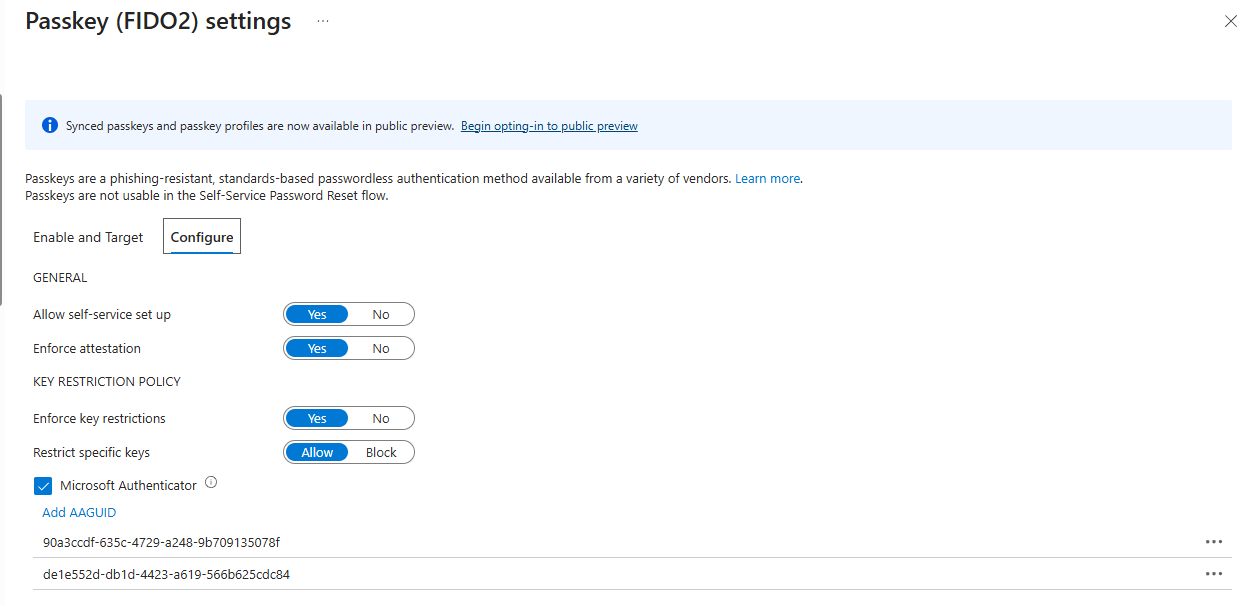
In the Entra portal: Navigate to Entra ID > Security > Authentication methods > Policies > Passkey (FIDO2).
Via Graph API (returns the complete configuration, including properties not visible in the portal):
GET https://graph.microsoft.com/v1.0/policies/authenticationMethodsPolicy/authenticationMethodConfigurations/fido2
Via PowerShell:
Connect-MgGraph -Scopes "Policy.Read.AuthenticationMethod"

Invoke-MgGraphRequest -Method GET -Uri 'https://graph.microsoft.com/v1.0/policies/authenticationMethodsPolicy/authenticationMethodConfigurations/fido2'
Key properties to review:
passkeyProfilesanddefaultPasskeyProfile: InspectpasskeyTypes,attestationEnforcementand profile-levelkeyRestrictions. The legacy top-level attestation fields do not describe migrated enforcement.- Profile-level
keyRestrictions.aaGuids: Inspect the AAGUID policy of every effective profile, not only the former top-level configuration. If you enabled Microsoft Authenticator in the portal, Entra automatically added two AAGUIDs:90a3ccdf-635c-4729-a248-9b709135078f(iOS) andde1e552d-db1d-4423-a619-566b625cdc84(Android) includeTargets: Review each group’s assigned passkey profile IDs and effective membership. See the v1.0 configuration schema.
How to Take Control Now
Step 1: Find out which model your tenant is on. In the Entra portal, go to Passkey (FIDO2), the page shown in the screenshot above. If migration has run, there is a Default profile populated from the previous configuration, and that profile is what the tenant enforces. Passkey profiles are now GA; Microsoft’s current guidance says a tenant cannot opt out after enabling profiles. You can still change profile targets and restrictions, but test those edits before applying them broadly.
Step 2: Configure your profiles. You can create up to 10 profiles; the non-deletable Default profile remains the baseline. The examples below use three deliberately separated groups. The following is a recommended configuration:
| Profile | Target Group | Passkey Type | Attestation | Use Case |
|---|---|---|---|---|
| Privileged | Dedicated admin and executive group | Device-bound only | Enforced | Attested device-bound authenticators |
| Standard | Dedicated workforce group excluding Privileged and Restricted members | Device-bound + Synced | Disabled | Workforce convenience |
| Restricted | Dedicated contractor group excluding Privileged members | Device-bound only | Enforced | Attested device-bound authenticators for supported contractor accounts |
Keep these assignments separate. Microsoft evaluates overlapping passkey profiles as alternatives: a passkey can register or authenticate when it satisfies any assigned profile. Assigning Standard to All users would also allow its synced passkeys for administrators and contractors. Check effective group membership and Default-profile assignments before rollout. Excluding someone from the entire Passkey (FIDO2) method blocks passkey use altogether; it is not a way to exclude only the Standard profile.
Attestation verifies authenticator properties at registration; it does not by itself require a hardware security key, and enabling it later does not re-attest existing registrations. If hardware keys are required, also allow only approved hardware-key AAGUIDs and review existing methods. With attestation disabled, Entra cannot guarantee a passkey’s claimed device-bound status.
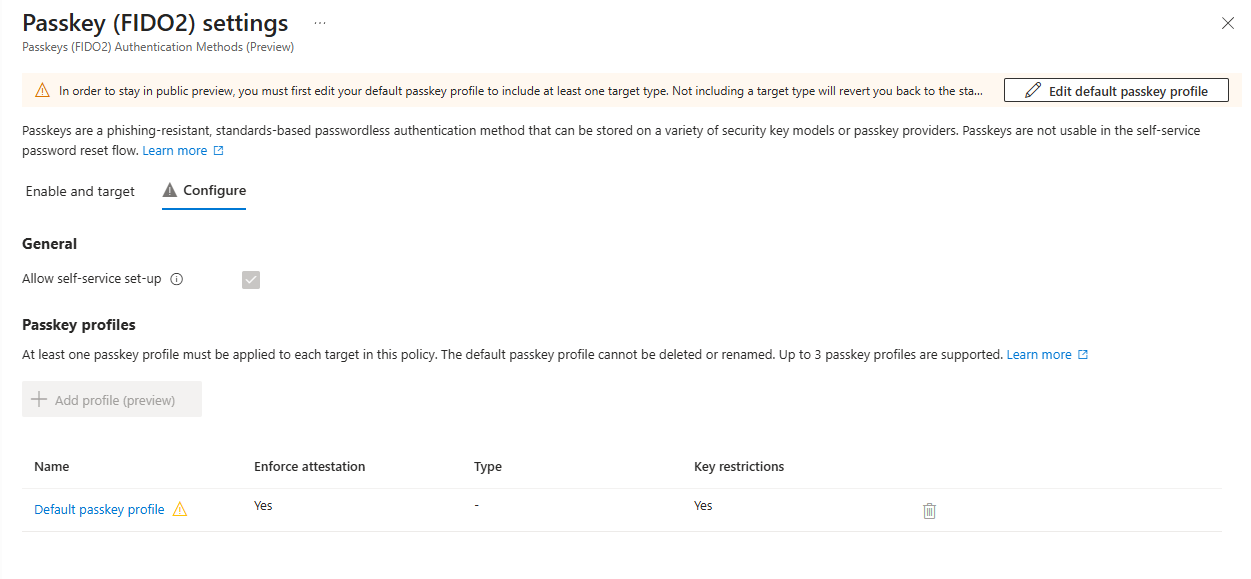
Step 3: Assign profiles to groups. Under the Enable and Target tab, add your security groups and assign the appropriate profile(s) to each.
Gotchas to Watch For
Removing an AAGUID from an allow list is retroactive. It blocks existing sign-ins, not just new registrations. If you prune your AAGUID list while reworking the profiles, users with those key types lose access immediately.
Registration campaigns change silently. When synced passkeys are enabled and Microsoft-managed registration campaigns are active, the campaign target shifts from Microsoft Authenticator to passkeys. The audience also expands to all MFA-capable users with unlimited daily reminders. Check where your campaign settings stand:
Connect-MgGraph -Scopes "Policy.Read.All"

$policy = Get-MgPolicyAuthenticationMethodPolicy
$campaign = $policy.RegistrationEnforcement.AuthenticationMethodsRegistrationCampaign

$campaign | Select-Object State, SnoozeDurationInDays
$campaign.IncludeTargets | Select-Object Id, TargetedAuthenticationMethod
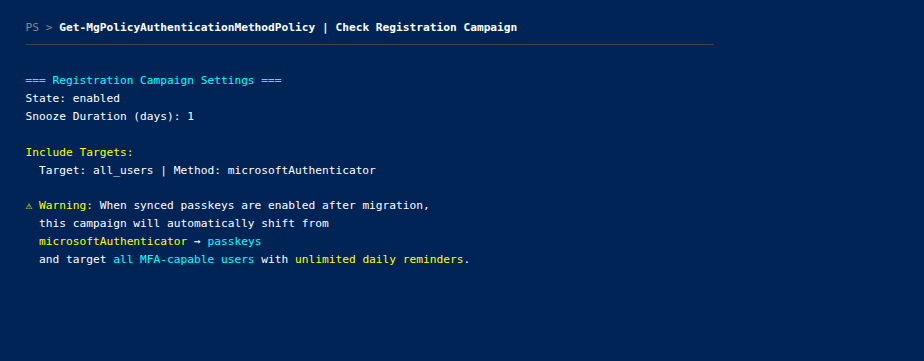
TargetedAuthenticationMethod value from your tenant before drawing a conclusion.Read both campaign state and TargetedAuthenticationMethod. Microsoft’s automatic retargeting guidance applies to Microsoft-managed campaigns, with September changes to eligibility and profile/AAGUID conditions. Do not infer the resulting method from campaign state alone; inspect the current configuration and tenant rollout notice. The illustrative panel above is not proof that its Enabled campaign will migrate. A passkey target alone does not establish who changed it, check audit history and effective policy.
Profile enablement cannot be reversed. Passkey profiles are GA, and Microsoft’s current guidance says you cannot opt out after enabling them. Test profile targeting, attestation, and AAGUID restrictions before broad rollout so a policy change does not lock out users.
Dedicated passkey policy storage: 20 KB. Review the current profile/storage limits independently of other authentication methods (Microsoft release notes).
Part 2: Conditional Access Enforcement Fix
The Gap That Existed
If you have a Conditional Access policy targeting “All resources” with one or more resource exclusions, certain baseline-scope sign-in flows were not being evaluated by that policy.
Before the change, baseline scopes were automatically excluded from policy enforcement when an “All resources” policy contained a resource exclusion. The practical effect differed by client type: public clients requesting only baseline scopes could avoid that policy’s controls, while an excluded confidential client requesting only baseline directory scopes could do the same. Confidential clients requesting only OIDC scopes are not part of the changed behavior.
That meant some users authenticating through affected applications received access without the MFA, device, block, session, or other controls that the matching policy would otherwise apply.
What Changed Starting June 15
Beginning June 15, 2026, Microsoft started evaluating the affected baseline scopes as directory access and mapping them to Azure AD Graph for Conditional Access evaluation. Policies that target “All resources” with exclusions can then evaluate these flows.
Microsoft’s current baseline-scope enforcement guidance distinguishes these cases:
| Client and request | Baseline scopes | Changed behavior? |
|---|---|---|
| Public client requesting only baseline scopes | OIDC: email, offline_access, openid, profile; directory: User.Read, User.Read.All, User.ReadBasic.All, People.Read, People.Read.All, GroupMember.Read.All, Member.Read.Hidden | Yes |
| Confidential client that is excluded from the policy and requests only baseline directory scopes | User.Read, User.Read.All, User.ReadBasic.All, People.Read, People.Read.All, GroupMember.Read.All, Member.Read.Hidden | Yes |
| Confidential client requesting only OIDC scopes | email, offline_access, openid, profile | No change |
Microsoft adjusted the schedule after its original announcement. Current guidance says the rollout began June 15, 2026 and proceeded over several weeks. The Baseline scopes settings offer three administrator choices: enable the improved behavior, customize behavior for selected policies through a placeholder application, or disable it tenant-wide. Microsoft recommends enabling the improved model and warns that disabling it creates coverage gaps. An explicit Customize or Disable selection persists until an administrator changes it; do not infer the effective state from the calendar alone.
How to Find Your Affected Policies
A policy is a review candidate if both conditions are true:
- Targets “All resources” (formerly “All cloud apps”)
- Has at least one resource exclusion
Actual user impact also requires an in-scope user and application request composed only of the affected baseline scopes. The result depends on every applicable condition and access control. Do not filter the policy inventory to grant controls alone: Conditional Access can also block access or limit it through session controls.
PowerShell to find affected policies:
Connect-MgGraph -Scopes "Policy.Read.All"

$policies = Get-MgIdentityConditionalAccessPolicy -All

$reviewCandidates = $policies | Where-Object {
    $_.Conditions.Applications.IncludeApplications -contains "All" -and
    @($_.Conditions.Applications.ExcludeApplications).Count -gt 0
}

$reviewCandidates | ForEach-Object {
    [PSCustomObject]@{
        Name            = $_.DisplayName
        State           = $_.State
        ExcludedApps    = (@($_.Conditions.Applications.ExcludeApplications) -join ", ")
        GrantControls   = if ($null -ne $_.GrantControls) {
            $_.GrantControls | ConvertTo-Json -Compress -Depth 4
        } else { "(none)" }
        SessionControls = if ($null -ne $_.SessionControls) {
            $_.SessionControls | ConvertTo-Json -Compress -Depth 4
        } else { "(none)" }
    }
} | Format-List
This script inventories policy candidates; it cannot prove which client requests exclusively baseline scopes. Correlate the result with app ownership and sign-in evidence before predicting user impact.
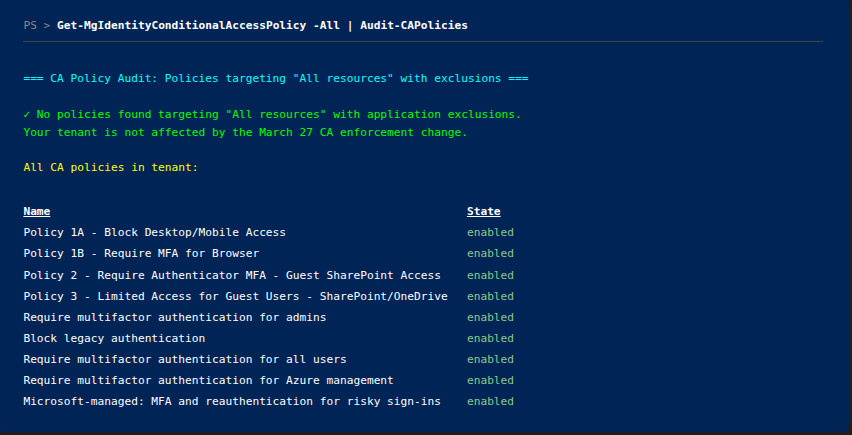
What Users Experience
When the improved behavior is active, users authenticating through affected baseline-scope applications may encounter:
- MFA prompts where they previously had seamless access
- Device compliance blocks if the policy requires compliant or hybrid-joined devices
- Location-based blocks if the policy restricts by named location
Microsoft’s examples include public clients such as the Visual Studio Code desktop client and Azure CLI, plus excluded confidential clients that request only baseline directory permissions. A confidential client requesting only OIDC scopes is not changed by this update.
How to Test Your Exposure
Inspect Baseline scopes settings: Open Microsoft’s Baseline scopes settings and record whether the tenant uses Enable, Customize, Disable, or the completed default rollout behavior.
Inventory policies, exclusions, and app owners: Run the candidate-policy script above, then document why each excluded application exists and which client type and scopes it requests. Follow Microsoft’s documented Identify affected applications workflow when you need request-level evidence.
Review sign-in logs: Monitor for CA-related failures and inspect the Conditional Access audience, application ID, client type, requested scopes where available, and evaluated policies. The following PowerShell snippet retrieves recent failures where Conditional Access blocked a sign-in:
Connect-MgGraph -Scopes "AuditLog.Read.All"

$cutoff = (Get-Date).ToUniversalTime().AddDays(-7).ToString("yyyy-MM-ddTHH:mm:ssZ")
$signIns = Get-MgAuditLogSignIn -Filter "createdDateTime ge $cutoff and status/errorCode ne 0" -Top 50

$signIns | Where-Object { $_.ConditionalAccessStatus -eq "failure" } | ForEach-Object {
    [PSCustomObject]@{
        User      = $_.UserPrincipalName
        App       = $_.AppDisplayName
        ErrorCode = $_.Status.ErrorCode
        Reason    = $_.Status.FailureReason
    }
} | Format-Table -AutoSize
This requires the Microsoft.Graph.Reports module and a Microsoft Entra ID P1/P2 license for sign-in log access. The snippet samples up to 50 failed sign-ins before selecting Conditional Access failures; use pagination or -All over an appropriately bounded interval for a complete inventory.
- Use What If for policy logic, not scope discovery: The Conditional Access What If tool helps test a user, application, conditions, and controls, but it does not replace observed evidence of the scopes a real client requested.
What To Do About It
If an affected application already handles Conditional Access claims challenges correctly, an application-code change might not be required. You should still review whether its resource exclusion remains justified.
If you have applications that cannot handle CA challenges, update them using Microsoft’s Conditional Access developer guidance before enforcing replacement policies.
If you intentionally excluded a resource, review the public- versus confidential-client behavior and the exact baseline scopes it requests. Customize or Disable can temporarily preserve legacy behavior, but both retain a coverage gap and should have an owner, business reason, expiry, and monitoring plan. Microsoft’s recommendation is to build a baseline MFA policy targeting all users and all resources without resource exclusions.
Key Takeaways
- Passkey profiles and synced passkeys became GA in March. If attestation was off, the tenant can come out of migration with synced passkeys in its Default profile. Open that profile and decide whether you actually want that.
- Conditional Access baseline-scope enforcement began June 15. Public clients requesting only baseline scopes and excluded confidential clients requesting only baseline directory scopes can now be evaluated by “All resources” policies with exclusions. Confidential clients requesting only OIDC scopes are not changed.
- The two controls have different reversibility. Tenants cannot opt out after enabling passkey profiles, but Conditional Access Baseline scopes settings currently support Enable, Customize, or Disable. Microsoft recommends the improved enforcement model.
- Audit first, then act. Use the scripts to identify review candidates, then collect request-scope and sign-in evidence before predicting impact or changing policy.
- Choose passkey type from the threat model. Use device-bound authenticators where enterprise control is paramount; enable synced passkeys for selected populations only after reviewing provider recovery, device enrollment, and exception paths.
Resources
- Enable passkeys and configure passkey profiles (Microsoft Learn)
- Enable passkeys in Authenticator for Microsoft Entra ID (Microsoft Learn)
- Conditional Access enforcement change (Help Net Security)
- Conditional Access: Targeting resources (Microsoft Learn)
- Conditional Access: Baseline-scope enforcement with resource exclusions (Microsoft Learn)
- Upcoming Conditional Access enforcement change (Microsoft Tech Community)
- MC1221452 - Auto-enabling passkey profiles (Message Center)
- Microsoft Entra ID auto-enables passkey profiles (LazyAdmin)
- Conditional Access developer guidance (Microsoft Learn)

Jerrad Dahlager, CISSP, CCSP
Cloud Security Architect · Adjunct Instructor
Marine Corps veteran and firm believer that the best security survives contact with reality.
Have thoughts on this post? I'd love to hear from you.