On this page
Getting custom data into Microsoft Sentinel has traditionally required a lot of moving parts. You need a Data Collection Endpoint, a Data Collection Rule, an Entra app registration with a client secret, RBAC role assignments, a custom table definition, and usually an Azure Function to glue it all together. That’s six manual steps before you even write your first KQL query.
Microsoft’s Codeless Connector Framework (CCF) Push mode, now in public preview, collapses all of that into a single deploy action. You define your connector in JSON, click deploy in the Sentinel Data Connectors gallery, and Sentinel auto-provisions the DCE, DCR, custom table, Entra app registration, client secret, and Monitoring Metrics Publisher RBAC assignment. You get back connection credentials and a push endpoint — ready to receive data.
This matters now because the legacy Data Collector API (MMA-based) retires on September 14, 2026. If you’re still using POST https://<workspace-id>.ods.opinsights.azure.com/api/logs, start migrating.
Hands-on Lab: All connector artifacts, deployment scripts, analytics rules, and the Python sender are in the companion lab.
Deploy-Lab.ps1deploys infra, analytics rules, and the workbook. The CCF Push connector resources (DCE/DCR/table/app/secret) are provisioned by clicking Deploy Push Connector Resources in the Sentinel portal.
What is CCF Push?
The Codeless Connector Framework has two modes:
- Poll mode — Sentinel pulls data from an API on a schedule (good for SaaS APIs with rate limits)
- Push mode — Your application pushes data to a DCE endpoint via OAuth (good for real-time feeds, custom collectors, and migration from the legacy API)
Push mode is the focus of this post because it solves the hardest integration pattern: getting arbitrary external data into Sentinel without building Azure Functions or Logic Apps.
What Gets Auto-Provisioned
When you click “Deploy Push Connector Resources” in the Sentinel data connectors gallery, CCF Push creates:
| Resource | What it does |
|---|---|
| Data Collection Endpoint (DCE) | HTTPS endpoint that accepts your JSON payloads |
| Data Collection Rule (DCR) | Transforms and routes data to the custom table |
| Custom Log Analytics table | FeodoTracker_CL with your defined schema |
| Entra ID app registration | Service principal for OAuth authentication |
| Client secret | Credential for the app registration (shown once) |
| RBAC role assignment | Monitoring Metrics Publisher on the DCR |
Old Way vs CCF Push
| Step | Manual Setup | CCF Push |
|---|---|---|
| Create DCE | az monitor data-collection endpoint create | Auto |
| Define custom table | az monitor log-analytics workspace table create | Auto |
| Create DCR with transforms | az monitor data-collection rule create | Auto |
| Register Entra app + secret | Azure Portal → App Registrations | Auto |
| Assign RBAC | az role assignment create | Auto |
| Build sender application | Azure Function / Logic App | You write this |
| Total manual steps | 6 | 1 (+ sender script) |
The sender application is the only thing you build yourself. Everything else is handled by the framework.
The Data Source: abuse.ch Feodotracker
Feodotracker is a free threat intelligence feed maintained by abuse.ch that tracks botnet command-and-control (C2) server infrastructure. It covers major malware families including Dridex, Emotet, TrickBot, QakBot, BumbleBee, Pikabot, and others.
The feed provides:
- IP addresses of confirmed C2 servers
- Port numbers used for C2 communication
- Malware family attribution
- First seen / last seen timestamps
- Status (online, offline)
- Country of the hosting infrastructure
The blocklist JSON endpoint requires no authentication:
https://feodotracker.abuse.ch/downloads/ipblocklist.json
This is real, continuously updated threat intelligence — not synthetic test data. Feeding it into Sentinel gives you an immediately actionable threat intelligence table that can correlate against your network logs.
Lab Deployment
Prerequisites
- Azure subscription (free trial works)
- PowerShell 7.0+ with Azure CLI installed and authenticated
- Python 3.10+ with
pip - Roles: Contributor + Microsoft Sentinel Contributor on the target resource group
Deploy
./scripts/Deploy-Lab.ps1 -Location "eastus"
Note: The script deploys infrastructure, analytics rules, and the workbook. After it completes, open the Sentinel Data Connectors gallery and click Deploy Push Connector Resources on the Feodotracker connector to auto-provision the DCE, DCR, custom table, and Entra app.
What Gets Deployed
| Resource | Type | Purpose |
|---|---|---|
| Log Analytics workspace | Microsoft.OperationalInsights/workspaces | Data storage |
| Sentinel onboarding | Microsoft.SecurityInsights/onboardingStates | Enable Sentinel |
| CCF Push connector | Data connector (Push kind) | Auto-provisions DCE/DCR/table/app |
FeodoTracker_CL | Custom table | Threat intelligence storage |
| 5 analytics rules | Scheduled KQL | Threat detection + TI correlation |
| 1 workbook | Sentinel workbook | Threat intel dashboard (5 panels) |
Cost Estimate
- Log Analytics ingestion: ~$2.76/GB (pay-as-you-go)
- Feodotracker feed: ~500 indicators per batch ≈ negligible ingestion cost
- No compute costs (no Azure Functions)
- Total: < $3/month for lab workloads
Building the CCF Push Connector
The connector consists of four JSON artifacts that define the table schema, data collection rule, connector UI, and push configuration.
Step 1: Define the Custom Table Schema
The table schema maps to the Feodotracker JSON fields. Every custom table in Log Analytics requires a TimeGenerated column of type datetime.
{
  "properties": {
    "schema": {
      "name": "FeodoTracker_CL",
      "columns": [
        { "name": "TimeGenerated", "type": "datetime", "description": "Ingestion timestamp" },
        { "name": "ip_address", "type": "string", "description": "C2 server IP address" },
        { "name": "port", "type": "int", "description": "C2 communication port" },
        { "name": "status", "type": "string", "description": "C2 server status (online/offline)" },
        { "name": "malware", "type": "string", "description": "Malware family name" },
        { "name": "first_seen", "type": "datetime", "description": "When the C2 was first observed" },
        { "name": "last_seen", "type": "datetime", "description": "When the C2 was last observed" },
        { "name": "country", "type": "string", "description": "Hosting country code" }
      ]
    }
  }
}
Step 2: Create the Data Collection Rule
The DCR defines the input stream schema and a transform KQL query. For this connector, we use a pass-through transform that adds TimeGenerated = now() for records that arrive without a timestamp.
{
  "properties": {
    "dataCollectionEndpointId": "[auto-provisioned]",
    "streamDeclarations": {
      "Custom-FeodoTrackerStream": {
        "columns": [
          { "name": "ip_address", "type": "string" },
          { "name": "port", "type": "int" },
          { "name": "status", "type": "string" },
          { "name": "malware", "type": "string" },
          { "name": "first_seen", "type": "datetime" },
          { "name": "last_seen", "type": "datetime" },
          { "name": "country", "type": "string" }
        ]
      }
    },
    "dataFlows": [
      {
        "streams": ["Custom-FeodoTrackerStream"],
        "destinations": ["logAnalyticsWorkspace"],
        "transformKql": "source | extend TimeGenerated = now()",
        "outputStream": "Custom-FeodoTracker_CL"
      }
    ]
  }
}
The transformKql field is where you can enrich, filter, or reshape data before it lands in the table. For this lab, source | extend TimeGenerated = now() is all we need.
Step 3: Create the Connector Definition
The connector definition controls how the connector appears in the Sentinel Data Connectors gallery — the icon, description, instructions, and the deploy button.
{
  "kind": "Customizable",
  "properties": {
    "connectorUiConfig": {
      "title": "Feodotracker Botnet C2 Feed (CCF Push)",
      "publisher": "Nine Lives, Zero Trust (Lab)",
      "descriptionMarkdown": "Ingests botnet C2 indicators from abuse.ch Feodotracker...",
      "graphQueriesTableName": "FeodoTracker_CL",
      "dataTypes": [
        {
          "name": "FeodoTracker_CL",
          "lastDataReceivedQuery": "FeodoTracker_CL | summarize max(TimeGenerated)"
        }
      ],
      "connectivityCriteria": [
        {
          "type": "HasDataConnectors"
        }
      ],
      "permissions": {
        "resourceProvider": [
          {
            "provider": "Microsoft.OperationalInsights/workspaces",
            "permissionsDisplayText": "Read and Write permissions on the workspace",
            "requiredPermissions": { "write": true, "read": true, "delete": true }
          }
        ]
      },
      "instructionSteps": [
        {
          "title": "Deploy Push Connector Resources",
          "description": "Click the button below to auto-provision the DCE, DCR, custom table, and Entra app registration.",
          "instructions": [
            {
              "type": "DeployPushConnectorButton"
            }
          ]
        }
      ]
    }
  }
}
The "type": "DeployPushConnectorButton" instruction is what creates the deploy button. When clicked, Sentinel provisions all the resources listed in the architecture section.
Step 4: Create the Push Data Connector
This ties the connector definition to the push configuration:
{
  "kind": "Push",
  "properties": {
    "connectorDefinitionName": "FeodotrackerCCFPush",
    "dcrConfig": {
      "streamName": "Custom-FeodoTrackerStream",
      "dataCollectionEndpoint": "[auto]",
      "dataCollectionRuleId": "[auto]"
    }
  }
}
Step 5: Deploy and Collect Credentials
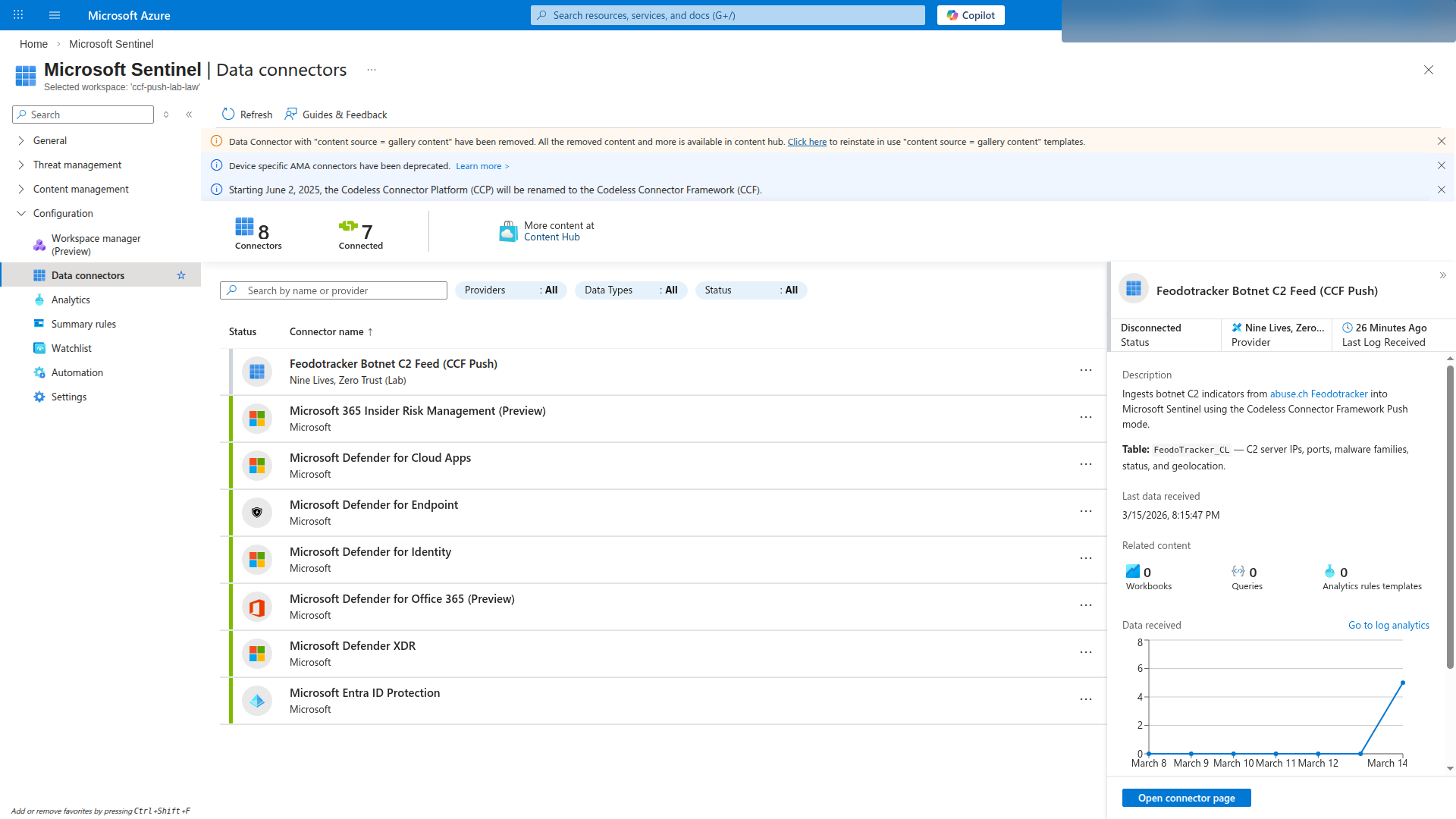
After deploying the connector artifacts via the REST API (or Deploy-Lab.ps1), open the Sentinel Data Connectors gallery, find the “Feodotracker Botnet C2 Feed” connector, and click Deploy Push Connector Resources.
Sentinel displays the connection credentials:
- Tenant ID — your Entra tenant
- Client ID — the auto-provisioned app registration
- Client Secret — shown once, copy it immediately
- DCE URI — the Data Collection Endpoint URL
- DCR Immutable ID — identifies the Data Collection Rule
- Stream Name —
Custom-FeodoTrackerStream
Save these — you’ll need them for the sender script.
The Sender Application
The Python script fetches C2 indicators from abuse.ch, transforms them to match the table schema, authenticates via OAuth 2.0 client credentials, and POSTs batches to the DCE.
#!/usr/bin/env python3
"""Fetch abuse.ch Feodotracker C2 indicators and push to Sentinel via CCF Push."""

import json
import os
import sys
import requests
from datetime import datetime, timezone

FEODO_URL = "https://feodotracker.abuse.ch/downloads/ipblocklist.json"
BATCH_SIZE = 100

def get_oauth_token(tenant_id: str, client_id: str, client_secret: str) -> str:
    url = f"https://login.microsoftonline.com/{tenant_id}/oauth2/v2.0/token"
    resp = requests.post(url, data={
        "grant_type": "client_credentials",
        "client_id": client_id,
        "client_secret": client_secret,
        "scope": "https://monitor.azure.com//.default",
    })
    resp.raise_for_status()
    return resp.json()["access_token"]

def fetch_indicators() -> list[dict]:
    resp = requests.get(FEODO_URL, timeout=30)
    resp.raise_for_status()
    return resp.json()

def transform(indicators: list[dict]) -> list[dict]:
    records = []
    for ind in indicators:
        records.append({
            "ip_address": ind.get("ip_address", ""),
            "port": ind.get("port", 0),
            "status": ind.get("status", ""),
            "malware": ind.get("malware", ""),
            "first_seen": ind.get("first_seen", ""),
            "last_seen": ind.get("last_online", ""),
            "country": ind.get("country", ""),
        })
    return records

def send_batch(records, dce_uri, dcr_id, stream_name, token):
    url = (f"{dce_uri}/dataCollectionRules/{dcr_id}"
           f"/streams/{stream_name}?api-version=2023-01-01")
    resp = requests.post(url, json=records, headers={
        "Authorization": f"Bearer {token}",
        "Content-Type": "application/json",
    })
    resp.raise_for_status()
    return resp.status_code
The full script with batching logic, error handling, and environment variable support is in scripts/Send-ThreatIntel.py.
Key implementation details:
- OAuth scope:
https://monitor.azure.com//.default(note the double slash — this is required) - Batch size: 100 records per POST to stay within the 1MB payload limit
- POST endpoint:
{dce_uri}/dataCollectionRules/{dcr_id}/streams/{stream_name}?api-version=2023-01-01 - Ingestion delay: First batch takes 5-10 minutes to appear in the table; subsequent batches are faster
- Scheduling: Run via cron, Azure Automation, or GitHub Actions for continuous ingestion
Sentinel Analytics Rules
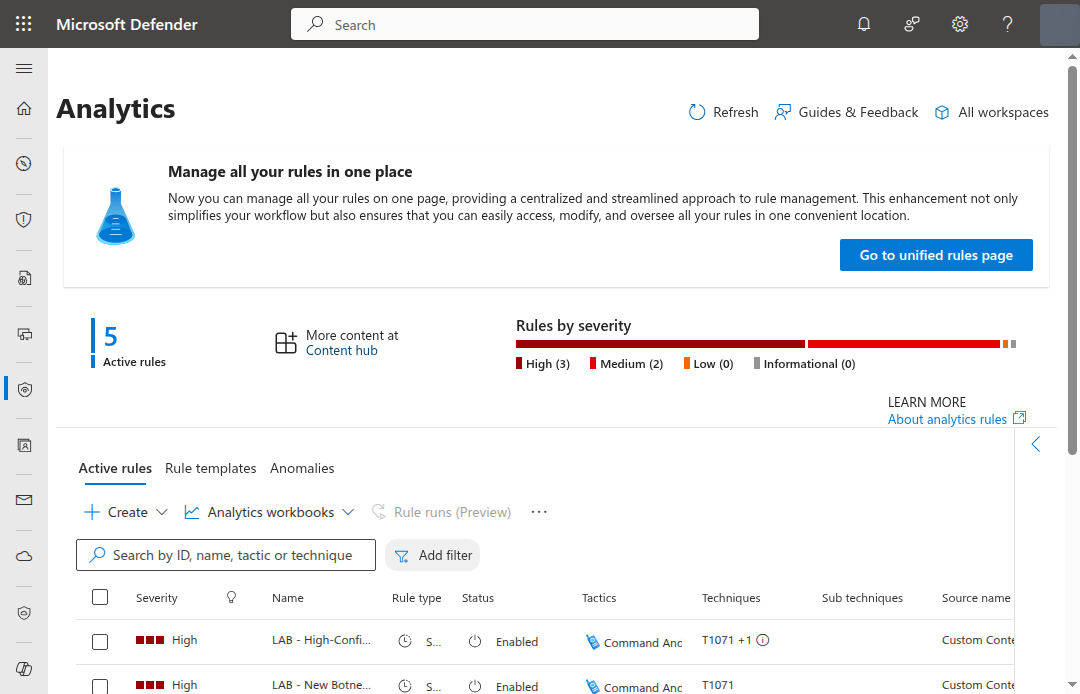
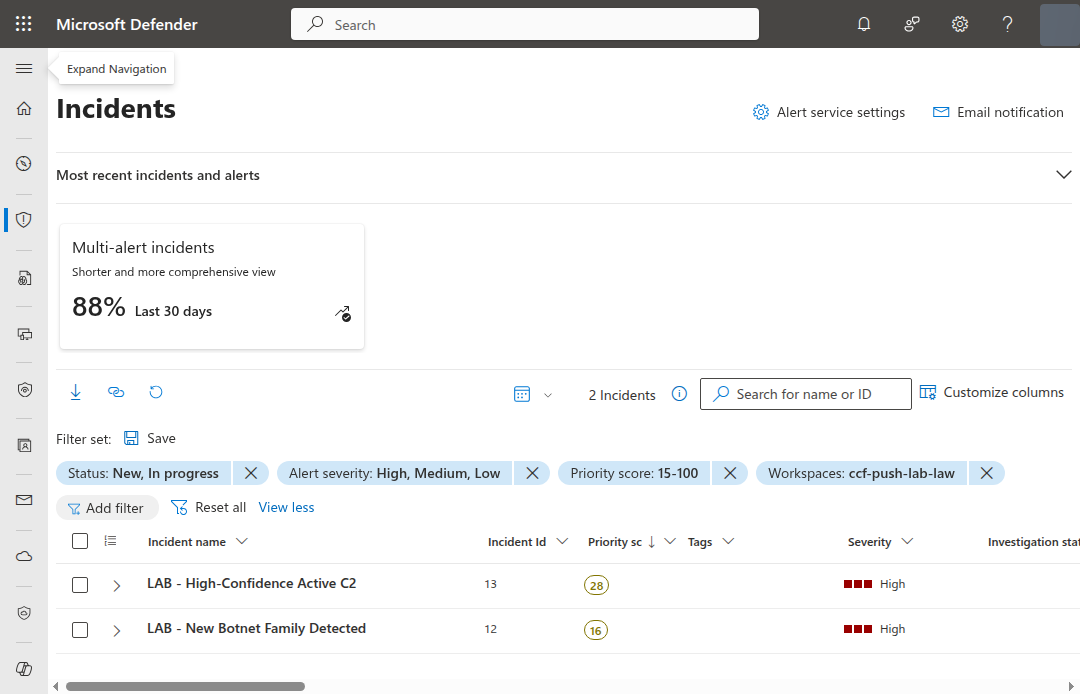
Five scheduled analytics rules detect patterns in the Feodotracker data. The first four analyze the threat intelligence feed itself. The fifth — the most valuable — correlates C2 indicators against your actual network traffic.
Rule 1: New Botnet Family Detected
Fires when a malware family appears in the feed for the first time — no historical records in the last 30 days.
let KnownFamilies = FeodoTracker_CL
    | where TimeGenerated > ago(30d) and TimeGenerated < ago(1h)
    | summarize arg_max(TimeGenerated, *) by ip_address
    | distinct malware;
FeodoTracker_CL
| where TimeGenerated > ago(1h)
| summarize arg_max(TimeGenerated, *) by ip_address
| where malware !in (KnownFamilies)
| summarize IndicatorCount = dcount(ip_address),
    FirstIP = min(ip_address),
    Countries = make_set(country, 10)
    by malware
| project TimeGenerated = now(), malware,
    IndicatorCount, FirstIP, Countries
Why this matters: A new malware family appearing in the C2 feed indicates a new campaign or a previously unknown botnet infrastructure becoming active. This is an early warning signal.
Rule 2: C2 Infrastructure Surge
Detects a >50% increase in active C2 IPs compared to the previous 24-hour window.
let Current = FeodoTracker_CL
    | where TimeGenerated > ago(1h)
    | where status == "online"
    | summarize CurrentCount = dcount(ip_address)
    | extend _key = 1;
let Previous = FeodoTracker_CL
    | where TimeGenerated between (ago(2d) .. ago(1d))
    | where status == "online"
    | summarize PreviousCount = dcount(ip_address)
    | extend _key = 1;
Current | join kind=inner (Previous) on _key
| where PreviousCount > 0
| extend ChangePercent = round(100.0 * (CurrentCount - PreviousCount) / PreviousCount, 1)
| where ChangePercent > 50
| project TimeGenerated = now(), CurrentCount,
    PreviousCount, ChangePercent
Why this matters: A sudden spike in active C2 infrastructure often precedes a large-scale spam or malware campaign. Operators spin up servers before launching.
Rule 3: High-Confidence Active C2
Flags recently active C2 servers using encrypted communication ports (443, 8443) — the most likely to evade network-level detection.
FeodoTracker_CL
| where TimeGenerated > ago(1h)
| summarize arg_max(TimeGenerated, *) by ip_address
| where status == "online"
| where port in (443, 8443)
| where last_seen > ago(7d)
| project TimeGenerated, ip_address, port,
    malware, country, first_seen, last_seen
Why this matters: C2 traffic over port 443 blends with legitimate HTTPS traffic. These indicators are the highest priority for network blocking rules and firewall policies.
Rule 4: Geographic C2 Concentration
Alerts when 10+ C2 IPs from the same country appear in a single ingestion batch, indicating concentrated infrastructure.
FeodoTracker_CL
| where TimeGenerated > ago(1h)
| summarize C2Count = dcount(ip_address),
    Families = make_set(malware, 10),
    Ports = make_set(port, 10),
    SampleIPs = make_set(ip_address, 5)
    by country
| where C2Count >= 10
| project TimeGenerated = now(), country, C2Count,
    Families, Ports, SampleIPs
Why this matters: C2 concentration in a single country can indicate a bulletproof hosting provider or a compromised hosting infrastructure. It’s also useful for building geographic blocklists.
Rule 5: Network Traffic to Known Botnet C2
This is the rule that turns your passive threat intelligence into active detection. It joins the Feodotracker C2 IP list against your actual network traffic logs — CommonSecurityLog (firewalls, proxies), DnsEvents (DNS resolutions), or any other log source with destination IPs.
let ActiveC2 = FeodoTracker_CL
    | where TimeGenerated > ago(7d)
    | where status == "online"
    | distinct ip_address, malware, port;
union isfuzzy=true
    (datatable(TimeGenerated:datetime, SourceIP:string,
        DestinationIP:string, LogSource:string,
        Details:string)[]),
    (CommonSecurityLog
        | where TimeGenerated > ago(1d)
        | where isnotempty(DestinationIP)
        | project TimeGenerated, SourceIP, DestinationIP,
            LogSource = DeviceProduct, Details = Activity),
    (DnsEvents
        | where TimeGenerated > ago(1d)
        | where isnotempty(IPAddresses)
        | mv-expand IPAddress = split(IPAddresses, ",")
        | project TimeGenerated, SourceIP = ClientIP,
            DestinationIP = tostring(IPAddress),
            LogSource = "DNS", Details = Name)
| join kind=inner ActiveC2
    on $left.DestinationIP == $right.ip_address
| project TimeGenerated, SourceIP, DestinationIP,
    malware, LogSource, Details
Why this matters: The previous four rules tell you what’s happening in the threat landscape. This rule tells you whether any of it is happening in your environment. A match here means a device in your network is actively communicating with a confirmed botnet C2 server.
The union isfuzzy=true with an empty datatable fallback ensures the rule deploys and runs even if you don’t have CommonSecurityLog or DnsEvents tables yet — it gracefully handles missing tables instead of failing.
Extending the correlation: Add more log sources to the union to widen coverage:
AzureNetworkAnalytics_CLfor NSG flow logsAZFWNetworkRulefor Azure FirewallDeviceNetworkEventsfor Defender for EndpointSyslogwith parsed destination IPs for Linux hosts
MITRE ATT&CK Mapping
| Technique | ID | Detection |
|---|---|---|
| Application Layer Protocol | T1071 | Rules 1, 3, 5 |
| Encrypted Channel | T1573 | Rule 3 |
| Acquire Infrastructure | T1583 | Rules 2, 4 |
| Web Service | T1102 | Rule 5 |
Hunting Queries
Five proactive hunting queries for threat intelligence analysis. Run these manually during investigations or scheduled hunts.
Hunt 1: C2 Infrastructure by Malware Family Over Time
FeodoTracker_CL
| where TimeGenerated > ago(30d)
| summarize C2Servers = dcount(ip_address)
    by malware, bin(TimeGenerated, 1d)
| render timechart
Track how each botnet’s infrastructure grows or shrinks over time. Useful for understanding campaign tempo.
Hunt 2: Most Active C2 Countries (Last 30 Days)
FeodoTracker_CL
| where TimeGenerated > ago(30d)
| where status == "online"
| summarize ActiveC2 = dcount(ip_address),
    Families = make_set(malware, 20)
    by country
| sort by ActiveC2 desc
| take 20
Identify which countries host the most active C2 infrastructure. Cross-reference with your organization’s geographic exposure.
Hunt 3: Newly Appeared C2 IPs (First Seen in Last 7 Days)
FeodoTracker_CL
| where TimeGenerated > ago(7d)
| where first_seen > ago(7d)
| summarize arg_max(TimeGenerated, *) by ip_address
| project ip_address, port, malware, country,
    first_seen, last_seen, status
| sort by first_seen desc
Fresh C2 infrastructure is the most dangerous — it hasn’t made it into most blocklists yet.
Hunt 4: Long-Lived C2 Infrastructure (Active > 90 Days)
FeodoTracker_CL
| where TimeGenerated > ago(1d)
| where status == "online"
| extend DaysActive = datetime_diff('day', now(), first_seen)
| where DaysActive > 90
| summarize arg_max(TimeGenerated, *) by ip_address
| project ip_address, port, malware, country,
    first_seen, DaysActive
| sort by DaysActive desc
C2 servers that survive 90+ days are either in bulletproof hosting or have been missed by takedown efforts. These are high-value blocklist candidates.
Hunt 5: Feed Ingestion Health Check
FeodoTracker_CL
| summarize
    RecordCount = count(),
    DistinctIPs = dcount(ip_address),
    Families = dcount(malware),
    Countries = dcount(country),
    OnlineCount = countif(status == "online"),
    OldestRecord = min(first_seen),
    NewestRecord = max(last_seen)
    by bin(TimeGenerated, 6h)
| extend OnlinePercent = round(
    100.0 * OnlineCount / RecordCount, 1)
| sort by TimeGenerated desc
Audit the freshness and completeness of your feed. Gaps in the 6-hour bins mean missed ingestion runs — check your cron job, GitHub Actions, or client secret expiry.
Workbook: Threat Intelligence Dashboard
The workbook provides five panels for ongoing threat intelligence monitoring.
Panel 1: C2 Activity Timeline
Timechart showing indicator count by malware family over time. Spot campaigns ramping up or winding down.
FeodoTracker_CL
| where TimeGenerated {TimeRange}
| summarize Indicators = dcount(ip_address) by malware, bin(TimeGenerated, 1d)
| render timechart
Panel 2: Geographic Distribution
Bar chart of C2 server count by country. Identify hosting hotspots.
FeodoTracker_CL
| where TimeGenerated {TimeRange}
| where status == "online"
| summarize C2Servers = dcount(ip_address) by country
| sort by C2Servers desc
| take 15
| render barchart
Panel 3: Active Malware Families
Table of malware families with active C2 count, latest activity, and top countries.
FeodoTracker_CL
| where TimeGenerated {TimeRange}
| summarize ActiveC2 = dcount(ip_address),
    LatestActivity = max(last_seen),
    TopCountries = make_set(country, 5)
    by malware
| sort by ActiveC2 desc
Panel 4: Recent Indicators
Table of the latest C2 indicators with full metadata, sorted by ingestion time.
FeodoTracker_CL
| where TimeGenerated {TimeRange}
| sort by TimeGenerated desc
| project TimeGenerated, ip_address, port, malware,
    status, country, first_seen, last_seen
| take 50
Panel 5: Network Traffic to Known C2
Table showing cross-source matches between your network traffic and active C2 indicators. This is the panel SOC analysts will use most — it answers “is any of this threat intelligence relevant to my environment?”
let ActiveC2 = FeodoTracker_CL
| where TimeGenerated {TimeRange}
| where status == "online"
| distinct ip_address, malware;
union isfuzzy=true
    (datatable(TimeGenerated:datetime, SourceIP:string,
        DestinationIP:string, LogSource:string)[]),
    (CommonSecurityLog
        | where TimeGenerated {TimeRange}
        | where isnotempty(DestinationIP)
        | project TimeGenerated, SourceIP, DestinationIP,
            LogSource = DeviceProduct),
    (DnsEvents
        | where TimeGenerated {TimeRange}
        | where isnotempty(IPAddresses)
        | mv-expand IPAddress = split(IPAddresses, ",")
        | project TimeGenerated, SourceIP = ClientIP,
            DestinationIP = tostring(IPAddress),
            LogSource = "DNS")
| join kind=inner ActiveC2
    on $left.DestinationIP == $right.ip_address
| project TimeGenerated, SourceIP, DestinationIP,
    malware, LogSource
| sort by TimeGenerated desc
| take 50
Automated Scheduling with GitHub Actions
The companion repo includes a GitHub Actions workflow that runs Send-ThreatIntel.py every 6 hours. Clone the repo, add your connection credentials as repository secrets, and you have a continuously updating threat intelligence pipeline — no Azure Functions, no compute costs, just GitHub’s free tier.
name: Ingest Feodotracker C2 Indicators

on:
  schedule:
    - cron: '0 */6 * * *'
  workflow_dispatch:

jobs:
  ingest:
    runs-on: ubuntu-latest
    steps:
      - uses: actions/checkout@v4
      - uses: actions/setup-python@v5
        with:
          python-version: '3.12'
      - run: pip install requests
      - name: Push indicators to Sentinel
        env:
          CCF_TENANT_ID: ${{ secrets.CCF_TENANT_ID }}
          CCF_CLIENT_ID: ${{ secrets.CCF_CLIENT_ID }}
          CCF_CLIENT_SECRET: ${{ secrets.CCF_CLIENT_SECRET }}
          CCF_DCE_URI: ${{ secrets.CCF_DCE_URI }}
          CCF_DCR_ID: ${{ secrets.CCF_DCR_ID }}
        run: python3 scripts/Send-ThreatIntel.py
To set up:
- Fork or clone
j-dahl7/sentinel-ccf-push-connector - Go to Settings → Secrets and variables → Actions
- Add the 5 connection credentials from the CCF Push deploy step
- Enable the workflow — indicators start flowing every 6 hours
The workflow_dispatch trigger lets you run it manually for testing. GitHub Actions free tier includes 2,000 minutes/month — this workflow uses about 1 minute per run, so 4 runs/day × 30 days = 120 minutes. Well within limits.
Extending to Other Feeds
The same CCF Push pattern works for any data source that produces JSON. abuse.ch maintains several other free feeds that map directly to the same architecture:
| Feed | URL | What It Tracks | Schema |
|---|---|---|---|
| Feodotracker (this lab) | feodotracker.abuse.ch | Botnet C2 server IPs | IP, port, malware, country |
| URLhaus | urlhaus.abuse.ch | Malware distribution URLs | URL, threat type, host, tags |
| ThreatFox | threatfox.abuse.ch | IOCs (IPs, domains, hashes) | IOC type, value, threat type, malware |
| MalwareBazaar | bazaar.abuse.ch | Malware samples | SHA256, filename, signature, tags |
For each feed, you would:
- Define a new custom table schema (e.g.,
URLhaus_CL) - Create a new DCR with the appropriate stream and transform
- Add a new connector definition to the Sentinel gallery
- Write a sender script (or extend
Send-ThreatIntel.pywith a--feedparameter)
The CCF Push connector definition and DCR templates in this lab can be adapted by changing the table name, column definitions, and transform KQL. The authentication and push mechanics are identical.
Old Way vs New Way
If you’ve built custom Sentinel connectors before, this comparison captures the shift:
| Aspect | Legacy (DCE/DCR Manual) | CCF Push |
|---|---|---|
| Resource provisioning | 6 separate az commands | 1 click in Sentinel gallery |
| Entra app management | Manual registration + secret rotation | Auto-provisioned, secret shown on deploy |
| RBAC configuration | Manual role assignment | Auto-assigned Monitoring Metrics Publisher |
| Compute costs | Azure Function consumption (~$5-15/month) | None (you run the sender anywhere) |
| Connector UI in Sentinel | None (hidden plumbing) | Full gallery entry with status, last data received |
| Maintenance | Function runtime updates, secret rotation | Zero (just run your sender script) |
| ARM template support | Yes (complex, 3+ resources) | Yes (single connector resource) |
| Migration effort from legacy API | High (rebuild everything) | Low (change the POST endpoint + auth) |
The biggest win isn’t the automation — it’s the visibility. Your custom connector shows up in the Sentinel Data Connectors gallery alongside Microsoft’s first-party connectors, with connection status, last data received timestamp, and a proper configuration UI.
Key Takeaways
CCF Push eliminates the biggest friction point in getting custom data into Sentinel. No more manual DCE/DCR/app registration choreography.
The legacy Data Collector API retires September 14, 2026. If you’re using the old
https://<workspace-id>.ods.opinsights.azure.com/api/logsendpoint, plan your migration now. CCF Push is the replacement path.Push-based beats poll-based for real-time feeds. You control when data arrives. No polling intervals, no Lambda/Function compute costs, no cold-start delays.
Correlate TI with your network traffic. A threat intel feed is informational until you join it against your logs. Rule 5 turns passive indicators into active detections by matching C2 IPs against
CommonSecurityLog,DnsEvents, and any other network log source.abuse.ch feeds are free, reliable, and immediately actionable. Feodotracker is one of many feeds (URLhaus, MalwareBazaar, ThreatFox) that can be ingested with the same CCF Push pattern.
Automate with GitHub Actions for zero-cost scheduling. The companion repo includes a workflow that ingests every 6 hours on GitHub’s free tier. No Azure Functions, no Logic Apps, no compute costs.
CCF Push supports ARM templates for the connector definition, DCR, and table schema — all declarative JSON suitable for CI/CD pipelines. The DCE/DCR/app provisioning still requires the portal deploy step, but the rest of the stack is fully automatable.
Resources
- Microsoft Learn: Create a CCF push connector
- Microsoft Learn: Logs ingestion API overview
- abuse.ch Feodotracker
- Legacy Data Collector API deprecation
- Companion lab: j-dahl7/sentinel-ccf-push-connector

Jerrad Dahlager, CISSP, CCSP
Cloud Security Architect · Adjunct Instructor
Marine Corps veteran and firm believer that the best security survives contact with reality.
Have thoughts on this post? I'd love to hear from you.